
Setting up a Parent Canvas Account with a Student Pairing Code
Creating a Parent Canvas Account
1. Go to the SCS Canvas Login Page.
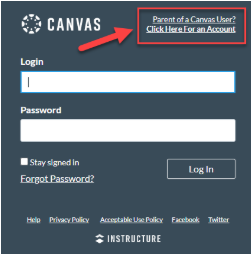
2. Click the link in the top-right of the page that says, "Parent of a Canvas User? Click Here For an Account" to create an account.
3. Enter the requested Parent Signup information to create your parent account.
4. View the Privacy Policy.
5. Each student generates a unique Student Pairing Code. With the student logged in to Canvas, the student will:
- Click on the account icon in the left-side navigation.
- Click on "Settings."
- Click "Pair with Observer" located on the right side.
- Copy the pairing code to be entered into the parent account.
6. Once you enter the Student Pairing Code, click "Student Participating."
7. Additional students can be added to the parent account when you are logged in.
- Click on the Account icon in the left-side navigation.
- Click on Observing.
- Enter the student pairing code for an additional student.
- Click the "+Student" button.
- Repeat the process for additional students.