Accessing & Navigating Salem City School's Canvas Site
Accessing the SCS Canvas Site
Follow these directions to access the Salem City School's Canvas Site using an SCS-issued student Chromebook.
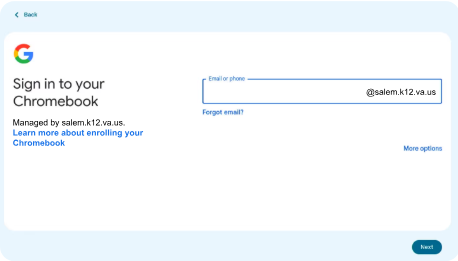
1. Open your Chromebook and log in using your SCS student number and password.
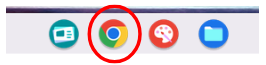
2. Click on the Google Chrome icon to open the Google Chrome web browser.
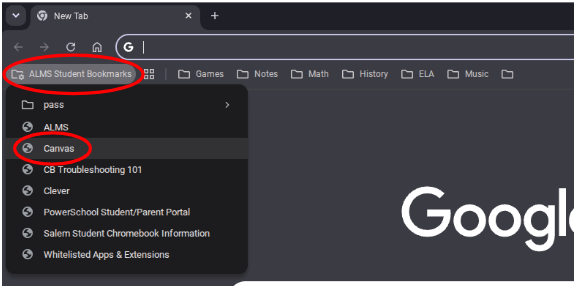
3. Click the "ALMS Student Bookmarks" option in your browser's bookmarks bar, then click on Canvas. This link takes you to the SCS Canvas Site.
4. You’ll be automatically logged in to the SCS Canvas site where you can view your Dashboard. The Dashboard should contain all of your courses as individual course cards.