Click on the “Customize and Control Google Chrome” menu (three vertical dots in the top-
right corner).
Scroll to the bottom of the menu and select “Settings” (i.e., gear icon).
In the left-hand menu, select “Privacy and security”.
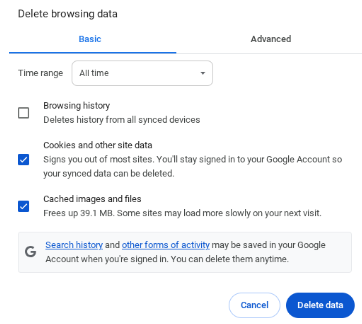
Click “Delete browsing data” in the middle of the page.
Change the “Time range” to “All time”, make sure the “Cookies and other site data” and “Cached images and files” buttons are both checked (as shown in the image below), and click “Delete data”.
Reset Chrome Settings
In “Settings,” click on the “Reset settings” option in the left-hand menu.
Click “Restore settings to their original defaults” in the middle of the screen.
Click the “Reset settings” button on the pop-up dialog box.
Restart Your Chromebook
Click on the time in the taskbar of your Chromebook.
Click the “Power options” button on the bottom right of the menu.